nuffnang

Saturday, September 8, 2012

Bootable Windows 7 USB Flash Drive

WARNING!!!
You need a USB flash drive with at least 4GB of free space, and the flash drive will be formattted to NTFS! So backup your data before creating this bootable USB, or you will lose all your data!

Follow the instructions in the Introduction at the beginning of tutorial and download and install the tool. The installation will add the program shortcut to your desktop, just double click to start.

1) After you launch the app, you will see the Step 1 of 4 dialog box. Here you will navigate to the location of your .iso file by clicking the Browse button. Once you have successfully located your iso file click Next to continue to step 2.
Click image for larger version

Name: USB DVD DL TOOL_1.JPG
Views: 6369
Size: 27.0 KB
ID: 32936
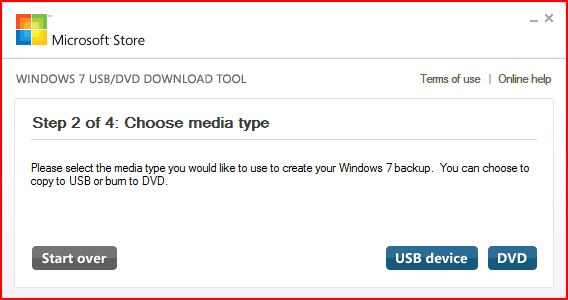
2) In step 2 of 4 you are given the choice of making a bootable DVD or a bootable USB flash. Here in Part 2 of my tutorial I show you how to create a bootable USB Flash Drive. So click USB device if that is what you want.
Click image for larger version

Name: USB DVD DL TOOL_2.JPG
Views: 76554
Size: 33.1 KB
ID: 32937 
3) Here in step 3 of 4 you will select the USB flash drive of your choice by using the drop down list arrow. Once you have chosen the correct Drive, click theBegin copying button.
Windows 7 USB/DVD Download Tool-usb-dvd-dl-tool_usb1.jpg

Windows 7 USB/DVD Download Tool-usb-dvd-dl-tool_usb4a.jpg
4) Here in step 4 of 4: Creating bootable USB device, you should see the progress bar move across the screen. As always your speed depends on many factors, have patience!
Windows 7 USB/DVD Download Tool-usb-dvd-dl-tool_usb4.jpg
5) Once completed you should see the following dialog box.
Windows 7 USB/DVD Download Tool-usb-dvd-dl-tool_usb5.jpg
I found it interesting that the USB device icon in "Computer" now looks identical to that of the DVD!
Windows 7 USB/DVD Download Tool-usb-dvd-dl-tool_usb6.jpg
Here are the contents of the USB device after completion...
Windows 7 USB/DVD Download Tool-usb-dvd-dl-tool_usb_contents.jpg

Sunday, April 22, 2012

Recovering Windows XP using the Recovery Console

When the system displays on booting a message of "missing" NTLDR or NTDETECT,
you can copy these files via Recovery Console from the CD-ROM.


Insert your Windows 2000 / XP installation CD-ROM and boot from CD-ROM


Windows 2000:
On the "Windows 2000 Professional Setup" menu, select "R" for repair.

as Repair option, select "C" to use the "Recovery Console".


Windows XP:
On the "Windows XP Professional Setup" menu, select "R" for Recovery Console.


Windows 2000 / XP :
You will be prompted to select the Windows installation to repair (usually just "1" )


You will need to enter the Administrator password !


make sure to be on the root of the C:-drive (please make : CD \ ).
In this example, the CD-ROM drive is Drive D: , allowing to make a copy of the files
NTLDR and NTDETECT.COM from the i386-directory to the C:\ - root directory.


type : EXIT to restart the system.


If there is a problem with the Boot-sector on the C:-drive, you can use "fixboot" to write
a new boot-sector.
If there is a problem with the Master-Boot-Record of the disk (maybe damaged by a virus),
you can use "fixmbr" to write a new MBR.


Extract files from CAB-files using "expand" :


example: I have copied a CAB-file from CD-ROM, display the content of the CAB-file
using "expand xxx.CAB /d /f:*" and then extract the required files via : "expand xxx.CAB /f:yyy"


Partition problems:
You can use "diskpart" to manage disk partitions.


If called up without an option, you get a simple user-interface :


Services and Devices
Use "listsvc" to display a list of all devices and services :


Saturday, January 14, 2012

BIOSTAR U8798 Pro Motherboard


U8798 Pro

Socket 478
Supports Intel Pentium 4/Celeron Processor
Supports FSB 533MHz
Support Intel Hyper-Threading Technology


Drivers
Chipset
Operating System:Windows  98/ ME/ 2000/ XP x86/ XP x64/ Vista x86/ Vista x64/ Server 2003 x86/ Server 2003 x64
Download here... 12.73MB

On-Board LAN
Operating System:Windows  98/ ME/ 2000/ XP x86/ XP x64/ Server 2003 x86/ Server 2003 x64
Download here... 6.63MB

On-Board Audio
Operating System:Windows  95/ 98/ ME/ 2000/ XP x86/ XP x64/ Server 2003 x86/ Server 2003 x64
Download here... 21.3MB

USB 2.0 Controller
Operating System:Windows  98/ ME
Download here... 10.64MB


Operating System:Windows  2000/ XP x86
Download here... 318.5MB


Bios Utility


Operating System:Windows  XP x86/ XP x64/ Vista x86/ Vista x64/ Server 2003 x86/ Server 2003 x64/ XP MCE/ Win7 x86/ Win7 x64
Download here... 4.12MB

How to update BIOS

Caution !!
We don't recommend the user to update the BIOS while the system is running in good condition. The failure of updating the BIOS due to improper operation will cause a damage of the system


LinkWithin

Related Posts with Thumbnails
 
Design by Free WordPress Themes | Bloggerized by Lasantha - Premium Blogger Themes | free samples without surveys