


 Saturday, September 08, 2012
 Lemuel
WARNING!!!
You need a USB flash drive with at least 4GB of free space, and the flash drive will be formattted to NTFS! So backup your data before creating this bootable USB, or you will lose all your data!
Follow the instructions in the Introduction at the beginning of tutorial and download and install the tool. The installation will add the program shortcut to your desktop, just double click to start.
1) After you launch the app, you will see the Step 1 of 4 dialog box. Here you will navigate to the location of your .iso file by clicking the Browse button. Once you have successfully located your iso file click Next to continue to step 2.
You need a USB flash drive with at least 4GB of free space, and the flash drive will be formattted to NTFS! So backup your data before creating this bootable USB, or you will lose all your data!
Follow the instructions in the Introduction at the beginning of tutorial and download and install the tool. The installation will add the program shortcut to your desktop, just double click to start.
1) After you launch the app, you will see the Step 1 of 4 dialog box. Here you will navigate to the location of your .iso file by clicking the Browse button. Once you have successfully located your iso file click Next to continue to step 2.
2) In step 2 of 4 you are given the choice of making a bootable DVD or a bootable USB flash. Here in Part 2 of my tutorial I show you how to create a bootable USB Flash Drive. So click USB device if that is what you want.

3) Here in step 3 of 4 you will select the USB flash drive of your choice by using the drop down list arrow. Once you have chosen the correct Drive, click theBegin copying button.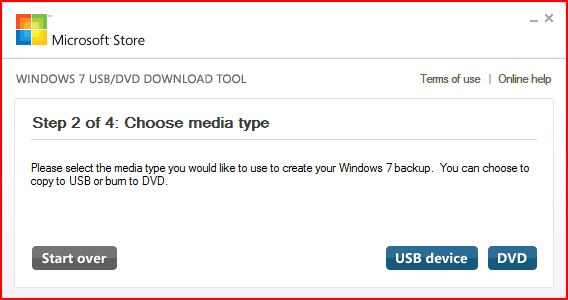

4) Here in step 4 of 4: Creating bootable USB device, you should see the progress bar move across the screen. As always your speed depends on many factors, have patience!


5) Once completed you should see the following dialog box.

I found it interesting that the USB device icon in "Computer" now looks identical to that of the DVD!

Here are the contents of the USB device after completion...


